

Mastering Figma Make
A practical set of tricks to make your Figma Make prototypes feel, behave, and function like real apps.

We’re diving into the essential techniques that instantly improve how you build and test with Figma Make.
For paid subscribers only part of my Design and Build Playbook. This playbook is constantly being updated.
Alright, let’s dive in.
1. Preview Your Make App Like a Real App
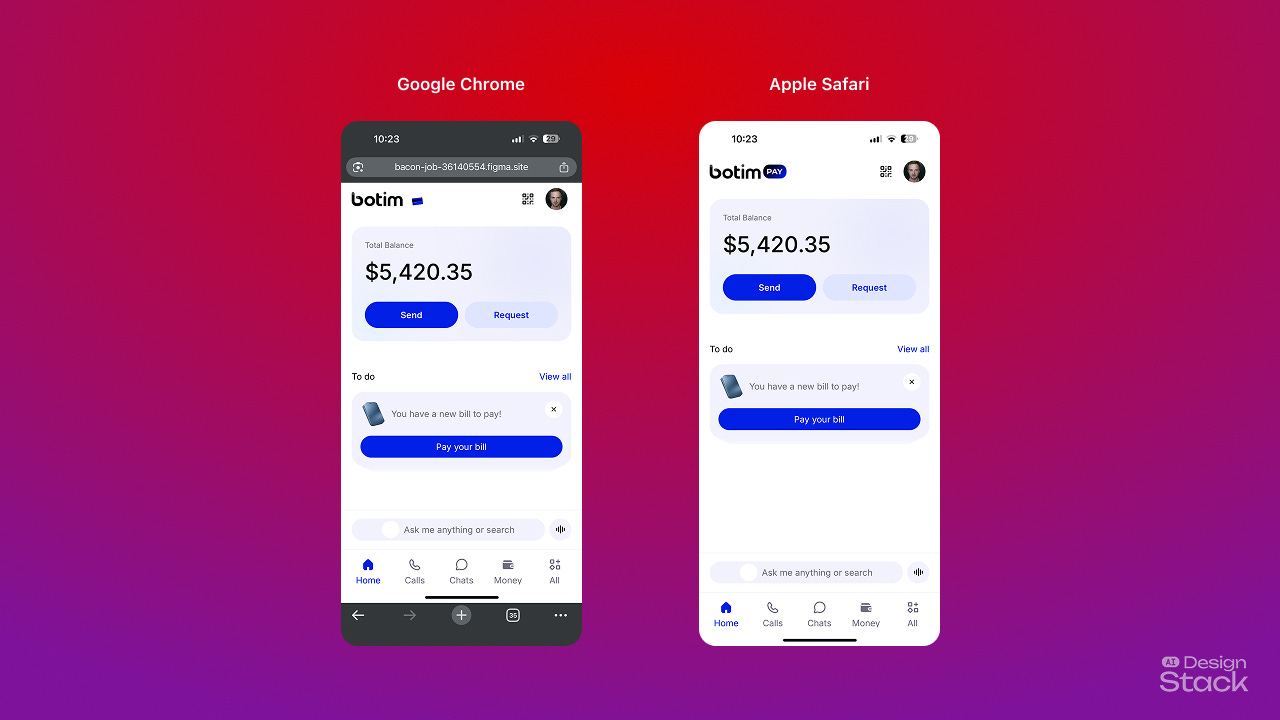
Figma’s preview window is fine for quick checks, but not when you want to test an experience properly. Here’s the workflow that makes your prototype feel like an actual shipped app.
Step 1 — Publish your Make app
Publish your project to generate a live URL that reflects all your logic, state, and data integrations.
Step 2 — Open in Safari and add to Home Screen
Open your published URL in Safari
Tap Share → Add to Home Screen
Launch it from your home screen like a real app
Runs full screen without browser UI
Step 3 — Hide the status bar in your design
On Make, prompt:
Hide the status bar on the actual mobile device
If added to your home screen, the app opens in a clean, full-screen environment by default.
Now you’re ready for testing.
2. Use the Device Camera to Scan QR Code
Figma Make prototypes can access real device hardware, including the camera.
How to use it:
Keep reading with a 7-day free trial
Subscribe to Design AI Stack to keep reading this post and get 7 days of free access to the full post archives.